Online Help Documentation
Report Controls
Report Controls allow you to set filtering parameters: dates period, users, computers, applications and websites (together called activities) and other items that will be reflected in the current report.
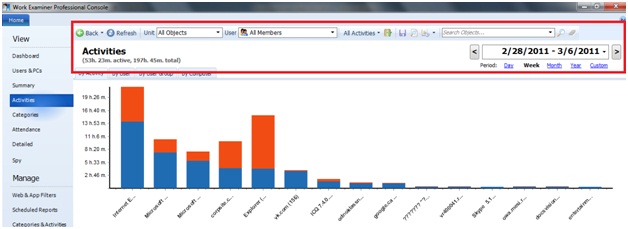
Dates Filter

Dates Filter allows you to set different report time intervals. You may select following periods: day, week, month, custom. When the “Custom time period” option is selected, you can define a time interval using From and To values or by selecting days in the calendar:
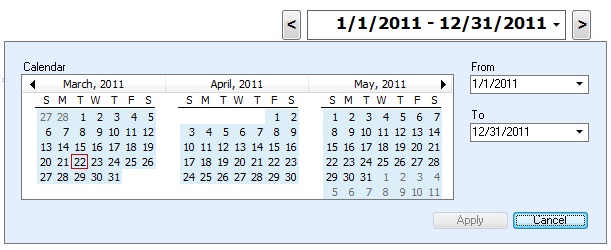
Use left and right arrow keys to move back and forth by the duration of the selected period.
Users Filter
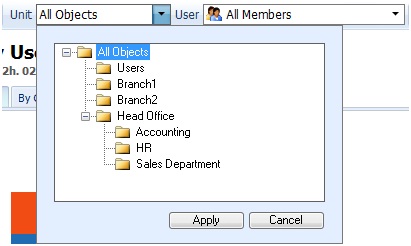
Users Filter allows you to set current report users: select Organization Unit or User Group in the Unit field, then choose a User (or All Unit Members) in the User field. By default, all users are selected. Read on how to unite users with organization units and user groups in the Organization Unit section.
Activities Filter
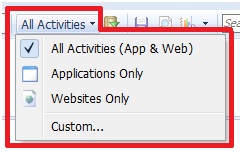
Activities Filter allows to build report for Applications only, Websites only or both Apps and Websites.
Extended Filter
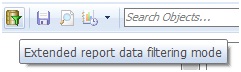
Extended Filter allows to use advanced report data filtering options. Extended Filter preferences include:
Schedule
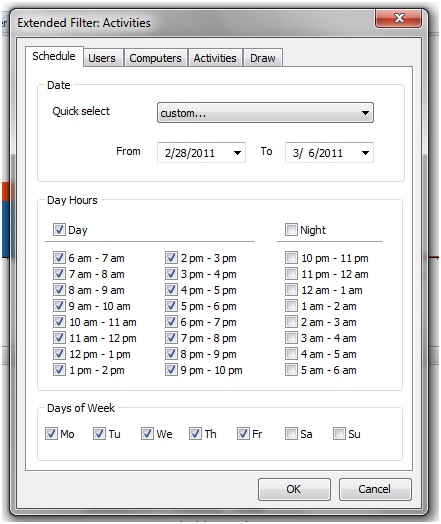
- Time period selection
- Hours selection (and also Day&Night hours)
- Weekdays selection
Users
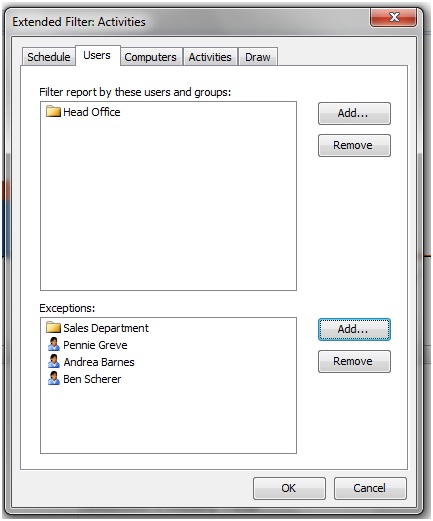
- Selection of Users to include to the report
- Selection of Users to exclude from the report
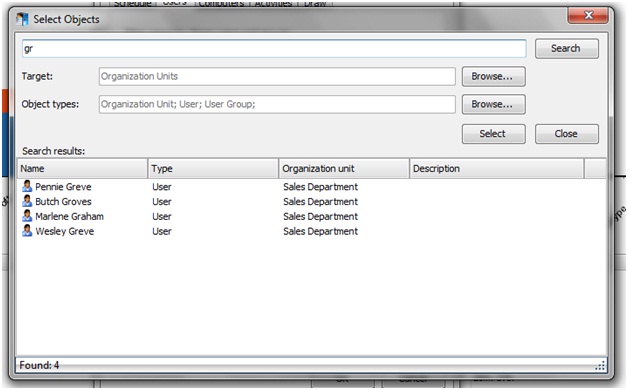
Users can be selected directly or from User Groups and Organization Units. To select report users, click on the Add button and special search window will appear:
Computers
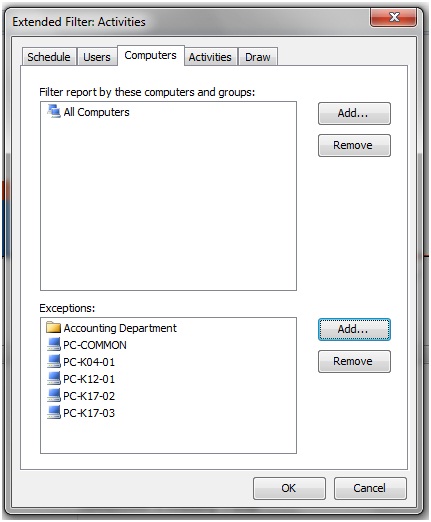
- Selection of Computers to include to the report
- Selection of Computers to exclude from the report
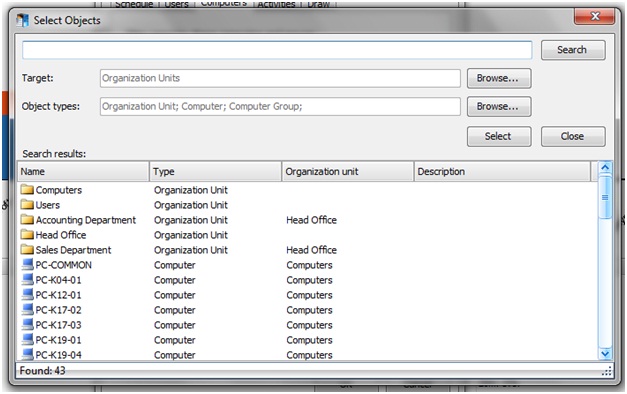
Computers can be selected directly or from Organization Units. To select report computers, click on the Add button and special search window will appear:
Activities
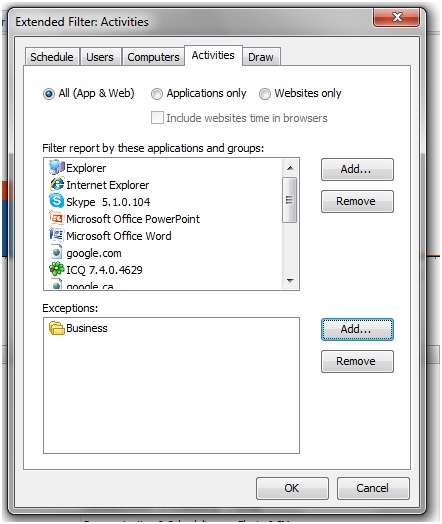
- Selection of report’s Activity types: All, Applications, Websites. E.g. Applications will mean that only programs will be showed in the report and you’ll see no any website. For Applications option you may select to include web browsers’ tracking time into the report or not. E.g. if “Include websites time in browsers” is not selected, you’ll see only local files\documents usage in the Internet Explorer, but not websites.
- Selection of Activities to include to the report. Activities can be added directly ‘as is’ or using a Category object.
- Selection of Activities to exclude from the report.
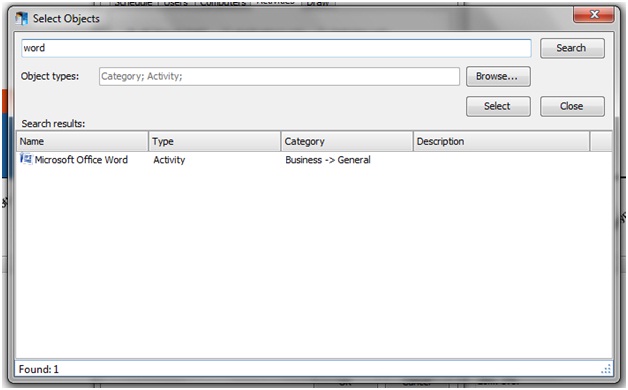
This search window is used to select Activities:
Draw
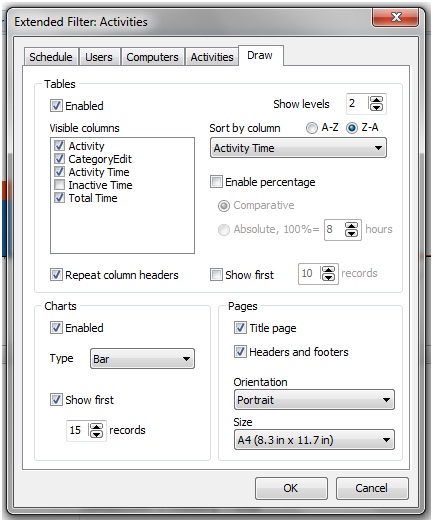
- Selection of report table columns
- Selection of number of levels for tree reports
- Selection of sorted column
- Chart type selection
Search

Search box allows to filter report data by application names, website URLs, categories, windows titles. In Spy Reports Search box also filters data by keystrokes, e-mail subjects and instant messages. Searching fields (usually columns) depend on the report itself. To reset the Search mode - click Clear.
Start to monitor employees instantly!
Install our solutions all over your network within 5 minutes